> For the complete documentation index, see [llms.txt](https://documents.vinovathemes.com/furstore-documentation/llms.txt). Markdown versions of documentation pages are available by appending `.md` to page URLs; this page is available as [Markdown](https://documents.vinovathemes.com/furstore-documentation/general-settings/product-countdown-time.md).
# Product Countdown Time
Product Countdown Time feature can enhance sales conversion effectively by emphasizing the limited time that the shoppers get to grab the deal. For this function to work, please follow these steps :
### Step 1: Create a metafield definition
1. From your Shopify admin, go to **Settings > Custom data.**
2. Under Metafields, click **Products**.
3. Click **Add definition**
4. Name your metadata field definition
5. The namespace and key you need to name is **"sale.countdown"** to match the code in our theme.
6. Choose type as **Date**
7. Click **Save** button
### Step 2: Add values to metafields
1. From your Shopify admin, go to **Products**
2. Click on a product for which you want to add a time countdown value.
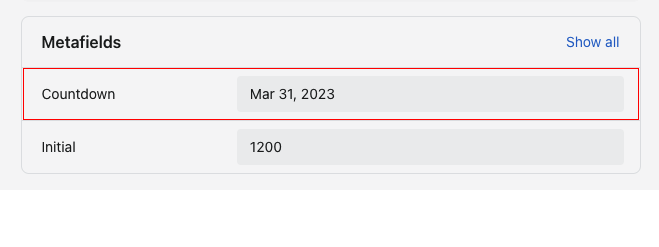
3. Scroll down and click on Metafields. Enter the time for that product.
4. Click Save button
{% embed url="" %}
***
## Sold - Available Bar setting
### Step 1: Create a metafield definition
1. From your Shopify admin, go to **Settings > Custom data.**
2. Under Metafields, click Products.
3. Click Add definition
4. Name your metadata field definition
5. The namespace and key you need to name is **"stock.initial"** to match the code in our Theme.
6. Choose type as **Integer**
7. Click Save button
### Step 2: Add values to metafields
1. From your Shopify admin, go to **Products**
2. Click on a product for which you want to add the metafield
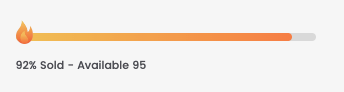
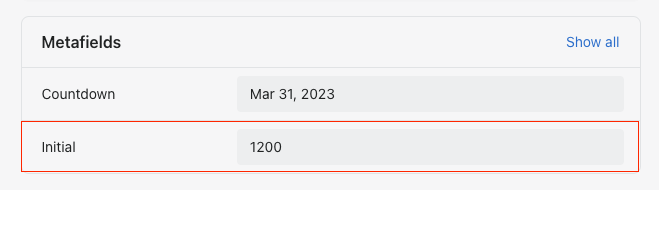
3. Scroll down and click on Metafields. Enter the total quantity of that product so that after each order, the total quantity here will be subtracted from the total sold of that product.
4. Click Save button
***
## How To change icons on the Sold - Available Bar?
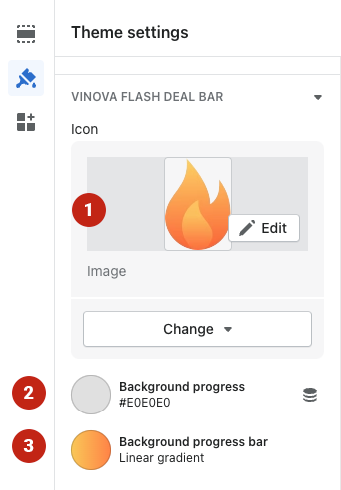
From "**Theme Settings**", click the tab "**Flash Deal Bar And Countdown**"
1. Choose the icon you want and upload
2. Background option of the entire bar
3. Bar gradient background option shows % of products sold