> For the complete documentation index, see [llms.txt](https://documents.vinovathemes.com/furstore-documentation/llms.txt). Markdown versions of documentation pages are available by appending `.md` to page URLs; this page is available as [Markdown](https://documents.vinovathemes.com/furstore-documentation/general-settings/search-settings.md).
# Search Settings
## Search Keyword Trending Settings
Search Keyword Trending lets you suggest customers to trending products or best-selling products. Search Keyword Trending is displayed in the search popup or right below the search bar.
Search Keyword Trending
{% hint style="info" %}
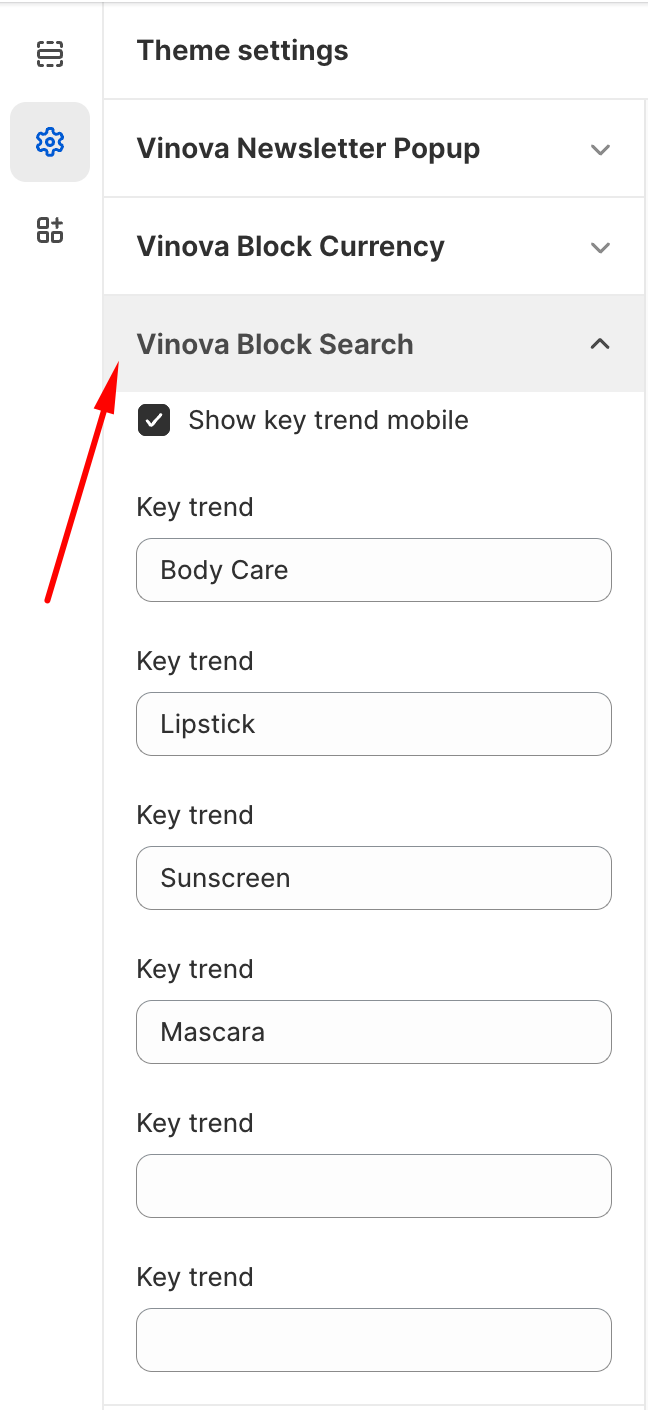
From "**Theme Settings**", click the tab "**Vinova Block Search**"
{% endhint %}
1. **Show key trend mobile:** This option allows you to display "Search Key Trend" on Mobile (When you touch the "search" icon in the mobile header)
2. Please add the keyword you want to the "Key Trend" box. Up to 5 keywords can be added, if you want to add more key trends, please contact the support team to customize this issue.
3. If you don't input the trend key, the "HOT SEARCHES" section will not appear on the search popup.
4. When you are done, press the "Save" button to complete the process.